
Confused? Scroll down to learn more.
Color Printing Release Instructions
Color Printing Policy:
-
-
- Students printing budget is for black and white printing only.
- Any color printing has to be at the request of a teacher for an assignment or club and the cost is charged to your budget or the club budget.
-
Steps for approving student color printing:
1. Log into the website
2. Under the “Staff” Menu Click on “Color Printing – Papercut”.

3. Click the red “Click Here For Color Printing Release” button.
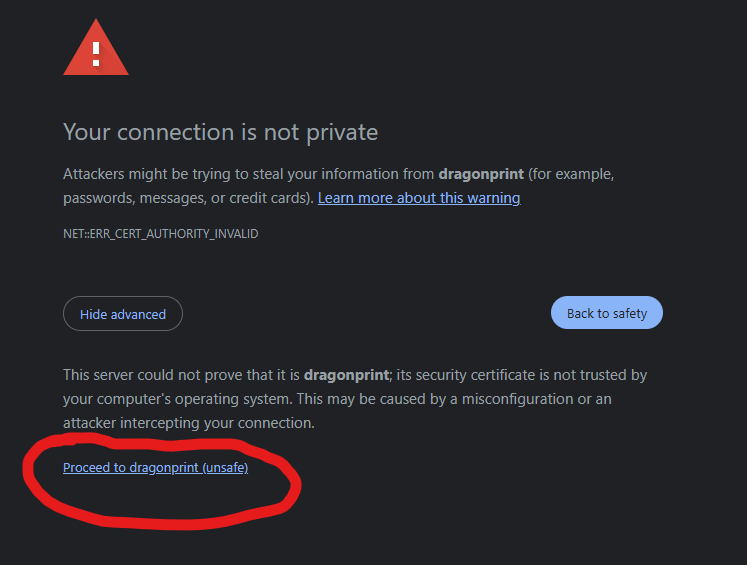
4. If it comes up with a security warning, press “Advanced” and then “Proceed to dragonprint” (It is safe despite what it says)
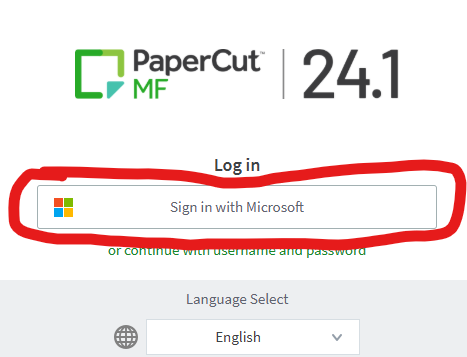
5. Press the “Sign in with Microsoft” button and use your computer login credentials.
6. Find the student you would like to approve color printing for.
7. Press “override” on the student you would like to approve.

8. Change the dropdown box to override to the teacher/club needed.
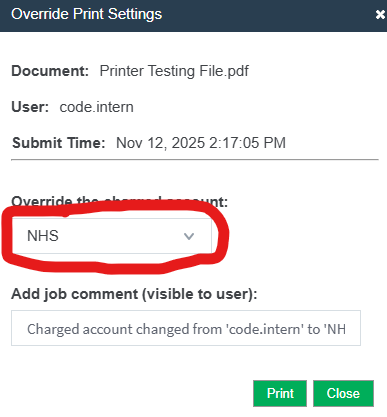
9. Press the “Print” Button.